It is possible to bring in or "restore" into a new Moodle activities
that have been copied or backed up in
a different Moodle. (Note that if you wish to re-use activities within
the same Moodle it might be simpler to use the import function. See
Import course data for information on
how to do this.)
To restore an activity you have backed up from another Moodle, ensure
you have your backup file available (e.g., on your computer or a USB
pen) and ensure you are logged in with editing rights, as a teacher
for example, and from the Activity navigation click More > Restore.
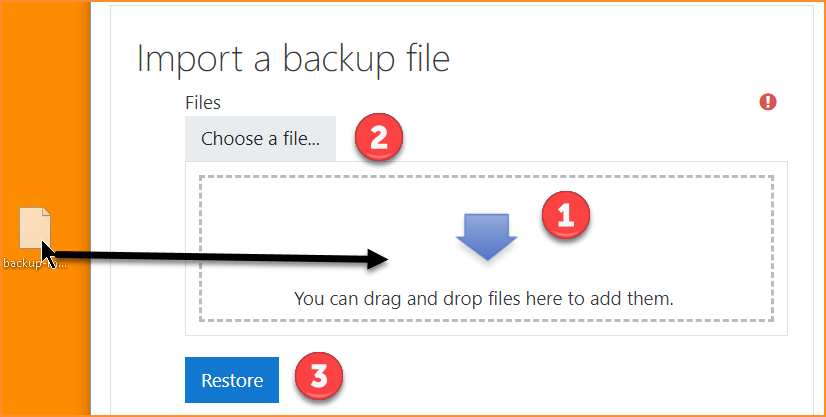
On the next screen, either drag and drop your backed up activity into
the box with the arrow (1 below) or else click Choose a file to add
it via the File picker (1 below); upload
your backed up activity and click ''Restore'" (2 below).
newrestore.png
On the next screen, click Continue and then select the course into
which you wish to restore your activity. Click Continue and then
clickNext. You will see your chosen activity:
Click Next and on the next screen, click Perform restore. Your
activity will be added to your chosen course.